CSS Grid vs Flexbox: When to Use Each (and When to Use Both)
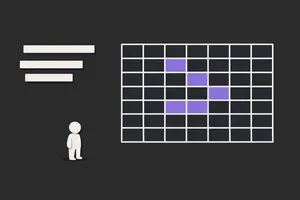
CSS Grid and Flexbox solve different layout problems. Reaching for the wrong one doesn't break your layout; it just creates extra work when the layout needs to change. Understanding the distinction makes layout decisions faster and the results easier to maintain.
Here's the short version: Grid is for two-dimensional layout (rows and columns together). Flexbox is for one-dimensional layout (a row or a column). Use Grid for the overall page structure; use Flexbox for the components inside it.
What Are CSS Grid and Flexbox?
- CSS Grid is a two-dimensional layout system. It handles both rows and columns simultaneously, making it ideal for complex page structures where you need control over both axes at once.
- Flexbox is a one-dimensional layout system. It arranges items in either a row or a column and handles distribution, alignment, and spacing within that single axis.
They overlap in some use cases. The decision is usually about which one fits the structure you're working with, not which one is "better."
When to Use CSS Grid
Use Grid when you need to control rows and columns together. The main scenarios:
Building complex page structures.
Dashboards, gallery layouts, multi-column article pages: anywhere you have a defined grid with multiple rows and columns that need to align with each other. Grid lets you define the structure once and place elements into it.
Aligning elements across the full layout.
Grid makes it possible to position elements in precise grid areas without fighting with margins and padding. Header, sidebar, and footer all anchored to a named grid layout is simpler to read and maintain than floats or manual positioning.
Responsive layouts with predictable behaviour.
Grid's repeat() function and fr units let you build layouts that adapt to different screen sizes without media query overload. A repeat(auto-fill, minmax(200px, 1fr)) column definition handles most responsive grid needs cleanly.
CSS Grid Example: A Simple Two-Column Layout
See the Pen CSS Grid Example: A Simple Two-Column Layout by Adam Marsden (@AdamMarsden) on CodePen.
.container {
  display: grid;
  grid-template-columns: 1fr 2fr; /* Two columns: first 1 fraction, second 2 fractions */
  grid-gap: 20px; /* Adds spacing between grid items */
}

.item1 {
  grid-column: 1 / 3; /* Spans across both columns */
}
<div class="container">
  <div class="item1">Header</div>
  <div class="item2">Sidebar</div>
  <div class="item3">Main Content</div>
</div>
The layout has a two-column structure with the second column twice the width of the first. The header spans both columns using grid-column. Clean, readable, easy to adjust.
When to Use Flexbox
Use Flexbox when you're arranging items in a single direction and need control over their alignment and distribution within that axis.
Centering and aligning content.
Flexbox is the right tool for vertical and horizontal centering, consistent spacing in a navbar, or aligning items in a card component. It handles alignment precisely without the hacks that came before it.
Dynamic content with variable sizes.
When items have unpredictable sizes and you need them to grow, shrink, or align without breaking the layout, Flexbox handles this naturally. Grid requires more explicit track definitions to achieve the same result.
Component-level layout.
Navigation menus, button groups, form rows, card footers: one-directional arrangements where you need alignment control. Flexbox is simpler here than Grid because you don't need to define a two-dimensional structure.
Flexbox Example: A Centered Call-to-Action Button
See the Pen Flexbox Example: A Centered Call-to-Action Button by Adam Marsden (@AdamMarsden) on CodePen.
.container {
  display: flex;
  align-items: center; /* Align items vertically */
  justify-content: center; /* Align items horizontally */
  height: 100vh; /* Full viewport height for demonstration */
}
<div class="container">
  <button>Click Me!</button>
</div>
The container uses display: flex, centering the button both vertically and horizontally with align-items and justify-content. Two lines of CSS that previously required much worse solutions.
The Decision in Practice
The clearest way to think about it:
| Use CSS Grid when... | Use Flexbox when... |
|---|---|
| You need control over rows and columns together | You're arranging items in one direction only |
| The layout has defined areas (header, sidebar, footer) | Items vary in size and need flexible distribution |
| You're designing the macro structure of a page | You're handling alignment inside a component |
When in doubt: Grid for the page, Flexbox for the components within it. This combination covers most real-world layouts without overcomplicating either level.
Using CSS Grid and Flexbox Together
Most production layouts use both. Grid for the overall page structure, Flexbox for alignment and distribution within individual sections. There's no rule against combining them; in fact, it's the natural way to use them.
If you want more thinking like this, Unicorn Club is a free weekly newsletter for senior designers and product teams. Practical, short, worth your time.
Example: A Blog Layout Combining CSS Grid and Flexbox
See the Pen Enhanced Combination Example: Blog Layout Using CSS Grid and Flexbox by Adam Marsden (@AdamMarsden) on CodePen.
.container {
  display: grid;
  grid-template-columns: 1fr 3fr;
  grid-template-rows: auto;
  grid-gap: 20px;
}

.sidebar, .main-content {
  display: flex;
  flex-direction: column;
}

.main-content > div {
  margin: 10px 0;
}
Grid defines the two-column structure. Flexbox handles the stacking direction within each column. Neither is doing the other's job.
Tools for Practising
Hands-on practice with visual feedback is the fastest way to internalise how these layout systems behave:
- CSS Grid Garden: cssgridgarden.com
- Flexbox Froggy: flexboxfroggy.com
- The CodePen demos above are editable: change values and watch what happens.
